
LÔC8 overview, specifications, and compatibilityUpdated 2 months ago
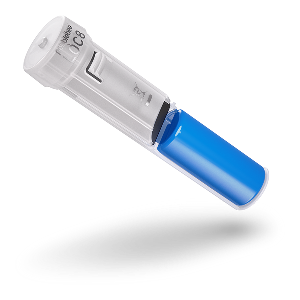
LÔC8 is a compact, embedded item finder designed to add location tracking to equipment that does not suit a traditional external tracker.
Its cylindrical shape allows it to be installed inside compatible items such as golf clubs, bicycles, and other gear.
This guide explains LÔC8 specifications, battery information, compatibility, and important installation considerations.
LÔC8 technical specifications
Weight: 0.3 oz / 8 g
Dimensions: 2.36 in × 0.55 in diameter / 60 mm × 14 mm diameter
Bluetooth range: Up to 500 ft under ideal conditions
Battery: Replaceable, non-rechargeable battery
Battery life: Up to three years, depending on use and environment
Wireless standard: Bluetooth
Warranty: One-year limited warranty
Button location: On the top of LÔC8
Because LÔC8 is designed to be embedded, its actual Bluetooth range can be affected by the surrounding material, installation location, nearby obstructions, and environment.
Water resistance
LÔC8 is designed for protected, embedded installations where the surrounding equipment helps shield it from direct exposure.
Battery life and replacement
LÔC8 uses a replaceable, non-rechargeable battery that can last up to three years. Battery life may vary depending on use, Bluetooth activity, installation, and environmental conditions.
You can check the battery status in Apple Find My or Google’s Find Hub.
Note: LÔC8 is not rechargeable. Do not attempt to charge it.
App compatibility
LÔC8 works with:
Apple Find My on iPhone
Google’s Find Hub on Android
The Pebblebee app for firmware management
LÔC8 can be connected to Apple Find My or Google’s Find Hub, but it cannot use both tracking networks simultaneously.
Use the tracking network that matches your phone:
iPhone: Apple Find My
Android: Google’s Find Hub
Use the Pebblebee app to check the installed firmware version and install available updates. Location tracking remains in Apple Find My or Google’s Find Hub.
Installation considerations
LÔC8 may be sold as a standalone device or come pre-installed inside compatible equipment.
If LÔC8 did not come pre-installed:
Connect it to Apple Find My or Google’s Find Hub.
Add it to the Pebblebee app.
Check for available firmware updates.
Install it in the compatible equipment.
Important: Complete setup before installation whenever possible. Pairing and firmware updates require access to the button on top of LÔC8, which may be difficult to reach once the device is embedded.
If LÔC8 came pre-installed, follow the equipment manufacturer’s setup, access, and service instructions.