
Card 5 overview, specifications, and compatibilityUpdated 6 days ago
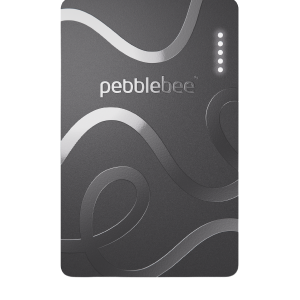 Card 5 is a slim, rechargeable item tracker designed for wallets, passports, bags, and other valuables.
Card 5 technical specifications
Weight: 0.49 oz / 14 g
Dimensions: 3.35 × 2.12 × 0.07 in / 85 × 54 × 1.74 mm
Bluetooth range: Up to 500 ft under ideal conditions
Battery life: Up to 18 months per charge, depending on use
Charging: Wireless charging
Water-resistance rating: IP66
Button location: Built into the Pebblebee logo, near the letters “le”
Water resistance
Card 5 has an IP66 water-resistance rating. This means it is dust-tight and protected against powerful water jets from any direction.
Important: Card 5 is water-resistant, not waterproof. Do not submerge it or expose it to water for extended periods, as this may damage its internal components.
Battery life and wireless charging
Card 5 has a rechargeable battery that lasts up to 18 months per charge. Actual battery life depends on use, Bluetooth activity, and environmental conditions.
The Card 5 charger is not included.
MagSafe compatibility
Important: Card 5 is not officially MagSafe-compatible. It does not contain alignment magnets, so it will not snap into place or automatically center itself on a MagSafe charger. Some MagSafe or magnetic wireless chargers may still charge Card 5 when it is positioned correctly, but compatibility varies by charger and cannot be guaranteed.
When using a magnetic wireless charger, manually position Card 5 over the charger’s charging area. If charging does not begin, adjust its position or try a different wireless charger.
Wireless chargers known to work
The following chargers have been used successfully with Card 5 when the device is aligned correctly:
Anker 313 Wireless Charger
Belkin Magnetic Wireless Charging Pad Qi2 15W with Kickstand
Anker MagGo wireless charging pad
Native Union Voyage 2-in-1 Magnetic Wireless Charger
Courant MAG:3 Charger and Tray
ZealSound Triple Wireless Charger
Charging performance may vary depending on the charger’s design, alignment, power adapter, and placement.
App compatibility
Card 5 works with:
Apple Find My on iPhone
Google’s Find Hub on Android
The Pebblebee app as a companion app
Card 5 can use Apple Find My or Google’s Find Hub, but it cannot be connected to both tracking networks simultaneously.
Connect Card 5 to your chosen tracking network before adding it to the Pebblebee app.
Card 5 and Card 4 comparison
| Feature | Card 5 | Card 4 |
|---|---|---|
| Thickness | 0.07 in / 1.74 mm | 0.11 in / 2.8 mm |
| Charging | Wireless charging | MagTech charging |
| Water-resistance rating | IP66 | IPX6 |
| Battery life | Up to 18 months | Up to 18 months |
| Bluetooth range | Up to 500 ft | Up to 500 ft |
| Recovery QR code | On the back of the device | Not included |
Recovery QR code
The QR code on the back of Card 5 is unique to that device and works with Pebblebee Link to help someone contact you if they find your lost item.
When you add Card 5 to the Pebblebee app, the QR code is automatically activated and linked to your account.
Note: You do not need to scan the QR code to pair Card 5 or activate it separately.
Once the device is successfully added to the Pebblebee app, you can set a custom message that will be shown if the device is found and the label scanned.