
How does CollarID workUpdated 2 months ago
Marking your Pet as lost
If your pet goes missing, you can mark them as lost in the Pebblebee app. This updates the information shown to anyone who scans your pet’s tag and, when available, can notify participating missing-pet registries.
Before you begin
Make sure your pet profile contains an up-to-date:
- Photo
- Pet name and description
- Home location
- Microchip number, if applicable
- Behavior and health information
- Instructions for anyone who finds your pet
Automatic registry notifications are currently available only for supported locations in the United States and Canada and depend on participating registry availability.
Mark your pet as lost
- Open the Pebblebee app.
- Go to Pets and select your pet.
- Tap Mark as Lost.
- Review or update the following information:
- Last seen: Select when your pet was last seen. This defaults to the current date and time.
- Instructions for the finder: Add useful information for others to know what to do if they find your pet.
- Notify missing-pet registries: Enable this option if you want Pebblebee to share the missing-pet information with supported partner registries.
- Tap on Update & Mark as Lost
What happens after you mark your pet as lost?
Your pet will appear as Lost in the Pebblebee app and anyone who scans the QR code on your pet’s tag will see all the information you provided.
You’ll receive a push notification if someone scans the tag. If the finder sends a message or shares a location, you can open the notification to review the information and respond securely. Communication between you and the finder takes place through Pebblebee’s secure relay.
Your pet’s public scan page will show that they are missing, when they were last seen, and instructions for the finder. You’ll receive a notification if someone scans the tag or sends you a secure message.
When your pet returns, select Mark as Found. The lost notice will be removed, and Pebblebee will attempt to update or remove any connected registry listings.
Locations are available only when a finder chooses to share one.
Missing-pet registry notifications
When enabled, Pebblebee attempts to create a missing-pet listing with participating partner registries using the information from your pet profile and Lost Mode report if your pet’s configured location is in a supported area of the United States or Canada.
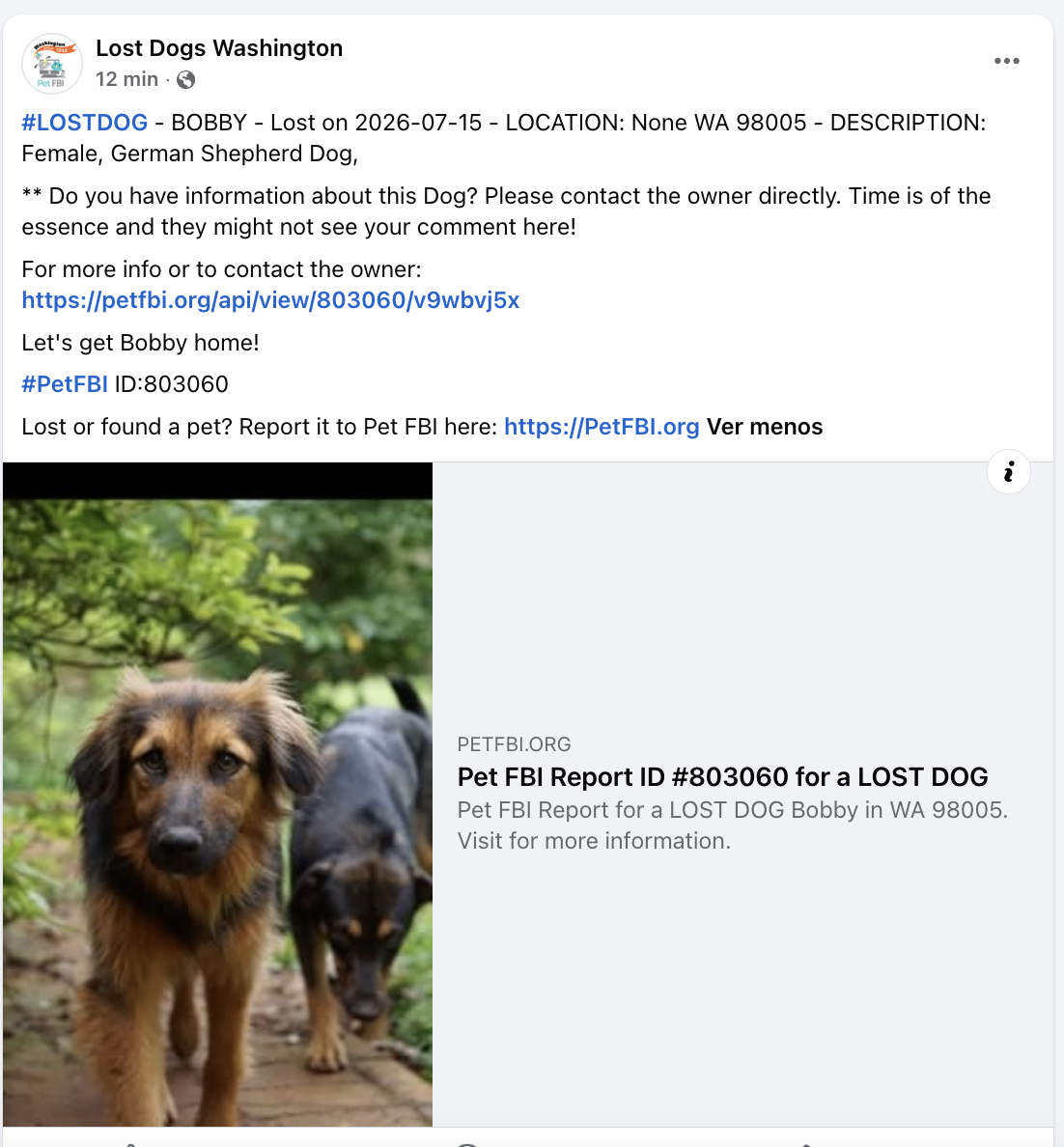 Pet Registry shared with participating Facebook Partner
Mark your pet as found
Once your pet is safely home:
- Open the pet from the Items tab.
- Select Mark as Found.
- Confirm your selection.
The lost notice will be removed from the public scan page. If your pet was submitted to participating registries, Pebblebee will also attempt to mark the listing as found or remove it, depending on what the registry supports.